
Shopify Theme Customization: How to Design and Personalize Your Online Store for Better User Experience
Your Shopify store is often the first and only impression a shopper gets of your brand, and the theme you pick shapes that impression. Shopify theme customization is the process of turning a ready-made template into a store that looks, feels and works like your business. Done well, it makes browsing easier, builds trust and nudges visitors toward checkout. This guide walks through how to design and personalize your store so every visit feels smooth and on-brand.
Why Shopify Theme Customization Matters
Out of the box, a theme is built for everyone, which means it fits no one perfectly. When hundreds of stores share the same layout, shoppers struggle to tell them apart. Customizing your theme lets you:
- Show a recognizable brand identity through colors, fonts and imagery
- Guide visitors to your best products with a clear layout
- Reduce friction on mobile, where most shoppers browse
- Improve loading speed and accessibility, both of which affect sales and search rankings
Start With the Theme Editor
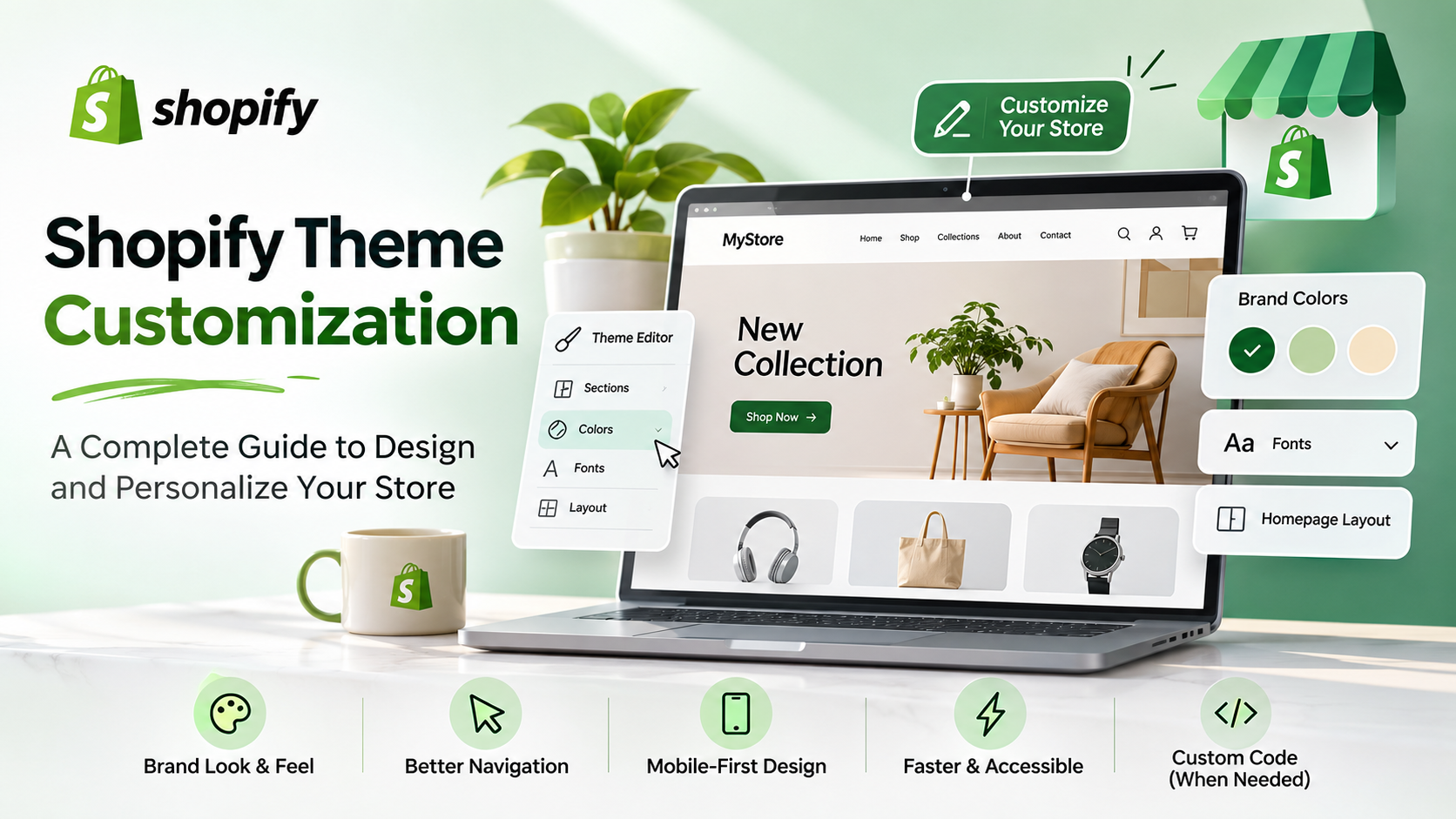
Shopify's built-in theme editor is the easiest place to begin, and it needs no coding. From your admin, open Online Store, then Themes, and select Customize. You will see a live preview where you can adjust sections and settings and watch the changes appear instantly.
Before editing, duplicate your live theme so you always have a safe copy to return to. Work on the copy, preview it on desktop and phone, and publish only when you are happy.
Build a Consistent Brand Look
Visual consistency makes a store feel professional. In the theme settings, choose a small color palette: one main color, one accent for buttons and one neutral for text and backgrounds. Pick no more than two fonts, one for headings and one for body text, and make sure both stay readable on small screens.
Upload a crisp logo, set a favicon, and use photography with a consistent style. Mixed lighting, backgrounds and image sizes quickly make a store look unfinished.
Design a Homepage That Guides Visitors
Your homepage should answer three questions within seconds: what do you sell, why should I trust you, and where do I go next. A strong layout often follows this order:
- A hero banner with a clear message and one main button
- Featured collections or best-selling products
- Social proof such as reviews or press mentions
- A short brand story or value statement
- An email signup near the footer
Use the section controls to drag blocks into this order, and remove anything that does not help the visitor move forward.
Make Navigation Simple
Shoppers leave when they cannot find things. Keep your main menu short, group products into logical collections, and use plain labels instead of clever names. Add a visible search bar, and consider predictive search so customers see suggestions as they type. A clear footer with shipping, returns and contact links also builds confidence.
Improve Your Product Pages
Product pages are where decisions happen, so they deserve extra attention. Focus on:
- Large, zoomable images from several angles
- Short, benefit-led descriptions with details broken into scannable points
- Visible price, stock status and delivery information
- A prominent add-to-cart button that stands out from the rest of the page
- Customer reviews and related product suggestions
Put Mobile Experience First
Most online shopping now happens on phones, so always check your changes in the mobile preview. Make buttons large enough to tap comfortably, keep forms short, and avoid pop-ups that cover the whole screen. A sticky add-to-cart button on product pages can noticeably smooth the buying journey.
Keep Your Store Fast and Accessible
A beautiful store that loads slowly loses customers. Compress images before uploading, limit the number of apps that add scripts, and avoid heavy animations. For accessibility, use sufficient color contrast, add descriptive alt text to images, and make sure the store can be used with a keyboard.
When to Use Code Customization
The theme editor covers most needs, but sometimes you want something it cannot do, like a custom layout or a unique product feature. This is where Liquid, Shopify's template language, along with CSS and JavaScript, comes in. If you are not comfortable with code, hire a Shopify developer, and always test changes on a duplicated theme first.
Common Mistakes to Avoid
- Editing the live theme without a backup
- Using too many colors, fonts or banners at once
- Installing many apps that slow the store down
- Ignoring mobile previews
- Hiding important information like shipping costs until checkout
Test, Learn and Keep Improving
Customization is never truly finished. After launch, watch your analytics to see where visitors drop off, ask a few customers for feedback, and test one change at a time, such as a new button color or a shorter homepage. Small, steady improvements add up to a store that feels designed around your shoppers.
Final Thoughts
Thoughtful Shopify theme customization turns a generic template into a store people remember and trust. Start with the theme editor, stay consistent with your brand, put mobile shoppers first, and bring in code only when you need it. Each improvement to your design is also an improvement to the experience, and a better experience is what keeps customers coming back.